



Best Audacity Settings for Voice Over
Do you have a voice recording in Audacity that sounds too quiet, flat, or dull? You’re not alone. Raw voice recordings often need a little polish before they sound professional. The good news is that with the best Audacity settings for voice over, you can transform your audio into something clean, powerful, and broadcast-ready.
In this guide, I’ll walk you through three simple steps — Normalize, EQ, and Compress — to get your voice sounding professional in Audacity.
Why Settings Matter for Voice Over
If you’re recording for a podcast, audiobook, radio, or YouTube video, your audience expects clear, consistent audio. Even if you have a great microphone, without the right processing your voice might sound:
- Too quiet compared to background music.
- Dull and muddy, with no sparkle or presence.
- Uneven in volume, with loud and quiet spots.
That’s where Audacity’s effects come in. By applying the right settings, you can smooth out volume, reduce unwanted noise, and give your voice the presence it needs to cut through.
Step 1: Normalize Your Audio
The first step in achieving the best Audacity settings for voice over is normalization. This ensures your audio plays back at a consistent, healthy level.
- Double-click your track to select it.
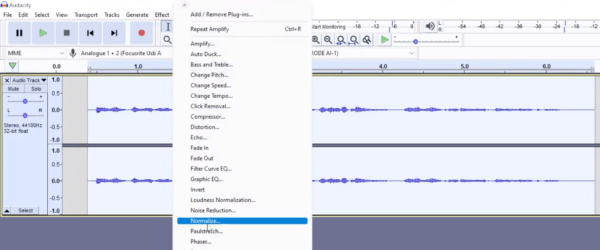
- Go to Effect > Normalize.
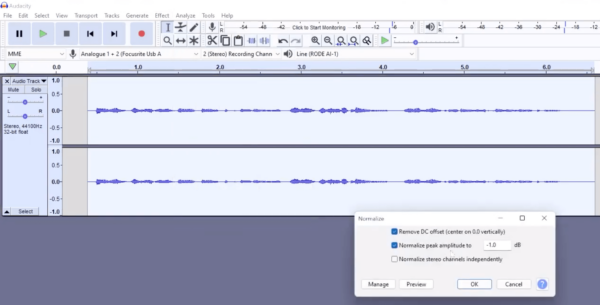
- Set the Peak Amplitude to -1.0 dB.
This will bring your audio up to a standard level without clipping (distortion). You’ll probably notice the track is louder overall, but there may still be uneven volume between different words or sentences. We’ll fix that with compression later.
Step 2: Shape the Sound with EQ
Next, it’s time to use EQ (equalization) to make your voice clear and pleasant to listen to. In Audacity, this is done with the Filter Curve EQ tool.
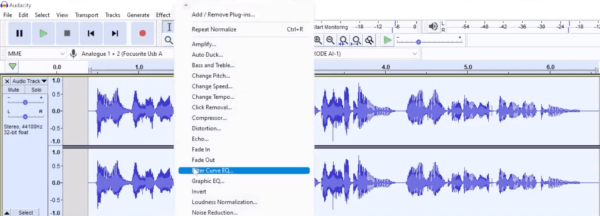
- Go to Effect > Filter Curve EQ.
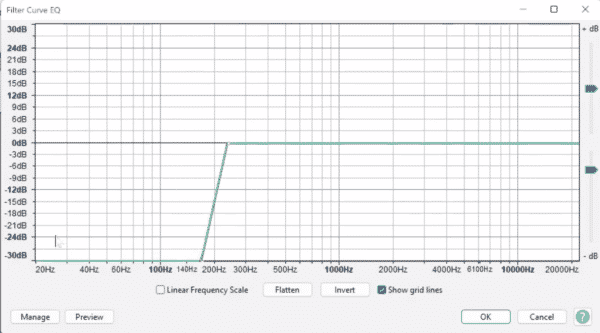
- Apply a high-pass filter to roll off unwanted low-end rumble (like mic bumps or traffic noise). Try cutting frequencies below 80–100 Hz.
- Add a gentle boost in the high frequencies (around 5–10 kHz) to add clarity and brightness.
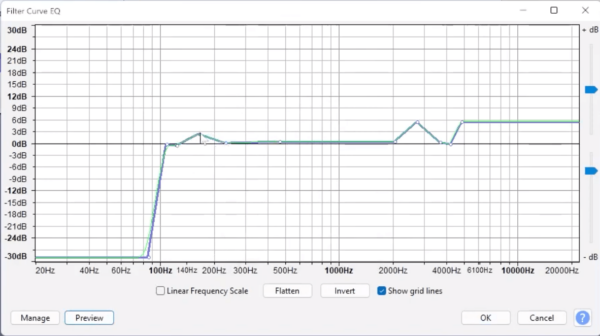
- Make subtle adjustments in the midrange (1–3 kHz) to bring presence and intelligibility to the voice.
- Optionally, give a slight boost around 120–200 Hz for warmth and depth.
Click Preview as you go, making small adjustments until your voice sounds natural and polished. Remember: less is more with EQ. Over-boosting can introduce harshness or distortion.
First, add in a high-pass filter to roll-off some of the low-end bass (such as unwanted mic bumps or traffic noise) we don’t need. Click preview to see what it sounds like, and adjust to suit, moving the points to the left if the voice is sounding a little too ‘thin’.
Next, add on some high-end and again adjust to suit. Bring the points down if it sounds too distorted or there’s too much sibilance.
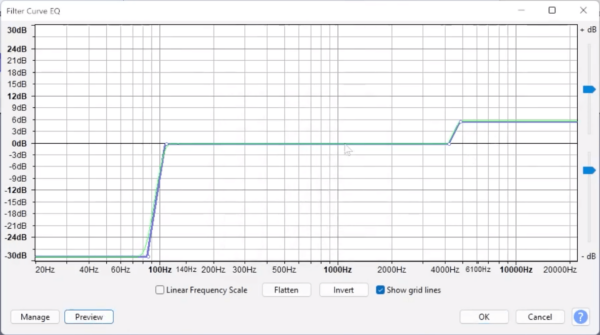
Next, add in some points in the middle to help the voice shine a bit more, as well as boosting the bass a little bit. Then when you’re happy with that, click OK.
Step 3: Even Out Volume with Compression
Finally, we’ll use compression to smooth out loud and quiet parts of your performance. This makes your voice sound consistent and professional — a must for podcasts, voice overs, and radio.
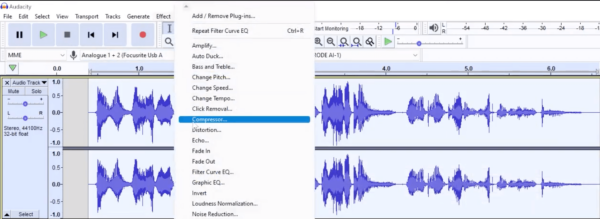
- Select the track, then go to Effect > Compressor.
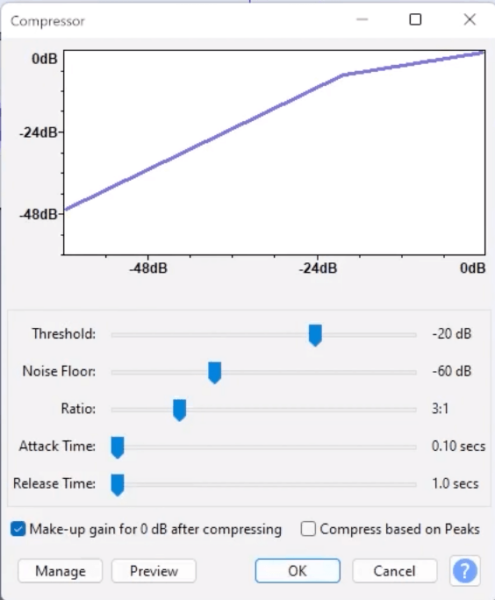
- Use these recommended settings as a starting point:
- Threshold: -20 dB
- Noise Floor: -60 dB
- Ratio: 3:1
- Attack Time: 0.10 sec
- Release Time: 1.0 sec
- Check the box for Make-up gain for 0 dB after compressing.
These settings reduce peaks while bringing up quieter moments, resulting in a more balanced track. After applying compression, your waveform should look more even, and your voice should sound steady throughout.
The settings I used were: Threshold: -20 dB; Noise Floor: -60 dB; Ratio: 3:1; Attack Time: 0.10 secs; Release Time: 1.0 secs; with the box checked for make-up gain for 0 dB after compressing.
Click ok, and you’ll see the volume levels for your track are more constant.
Extra Tips for Best Audacity Settings For Voice Over
- Record in a quiet space. No amount of editing will fully fix a noisy environment.
- Use a pop filter to cut down on plosives (p and b sounds).
- Mic placement matters. Keep about 6–8 inches away from the microphone for a natural sound.
- Experiment with presets. Audacity allows you to save EQ and compressor settings — perfect if you record often.
- Finish with Loudness Normalization. For podcasts, aim for -16 LUFS; for YouTube or streaming, use -14 LUFS.
Conclusion
With these three core steps — Normalize, EQ, and Compress — you’ll have the best Audacity settings for voice over. It only takes a few minutes, and the difference is huge. Whether you’re creating podcasts, YouTube videos, or audiobooks, your voice will sound clearer, more consistent, and far more professional.
Learn More About Editing Audio In Audacity
- How to Use Audacity for Beginners
- Vintage Voice Effect in Audacity (Old Radio Effect)
- How to Trim Audio in Audacity
- How to Completely Remove Vocals from a Song Using Audacity
Check Out My Audacity Course
👉 Ready to fast-track your audio editing? Grab my Audacity Presets and sound great in Audacity with just a few clicks.
Table of Contents